1. Install
Check the system requirements (Windows and OneNote), then open MentorBrief in OneNote after installation; downloads and trial activation are not open yet.
Windows edition opening for purchase soon
Check the system requirements (Windows and OneNote), then open MentorBrief in OneNote after installation; downloads and trial activation are not open yet.
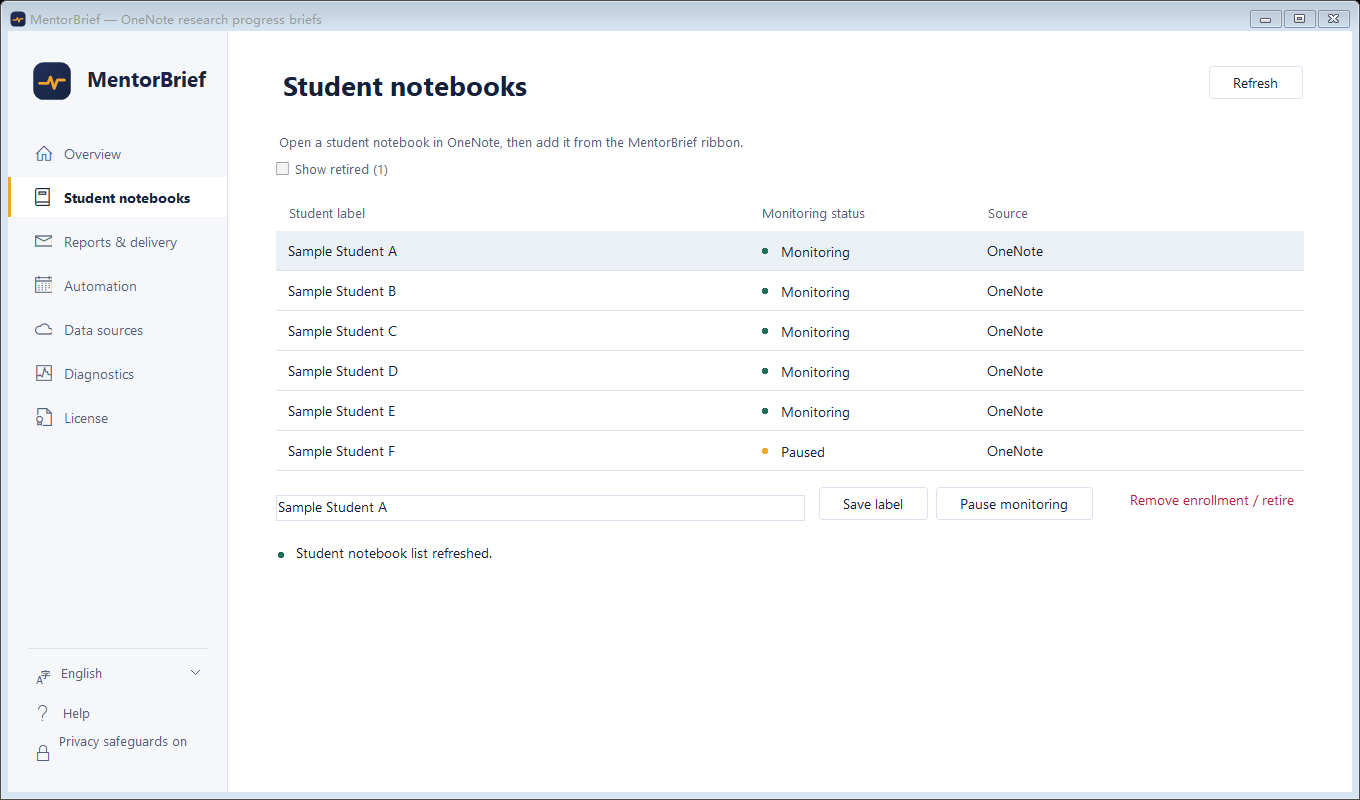
Open an authorized shared student notebook in desktop OneNote, then select Add current notebook on the MentorBrief ribbon.
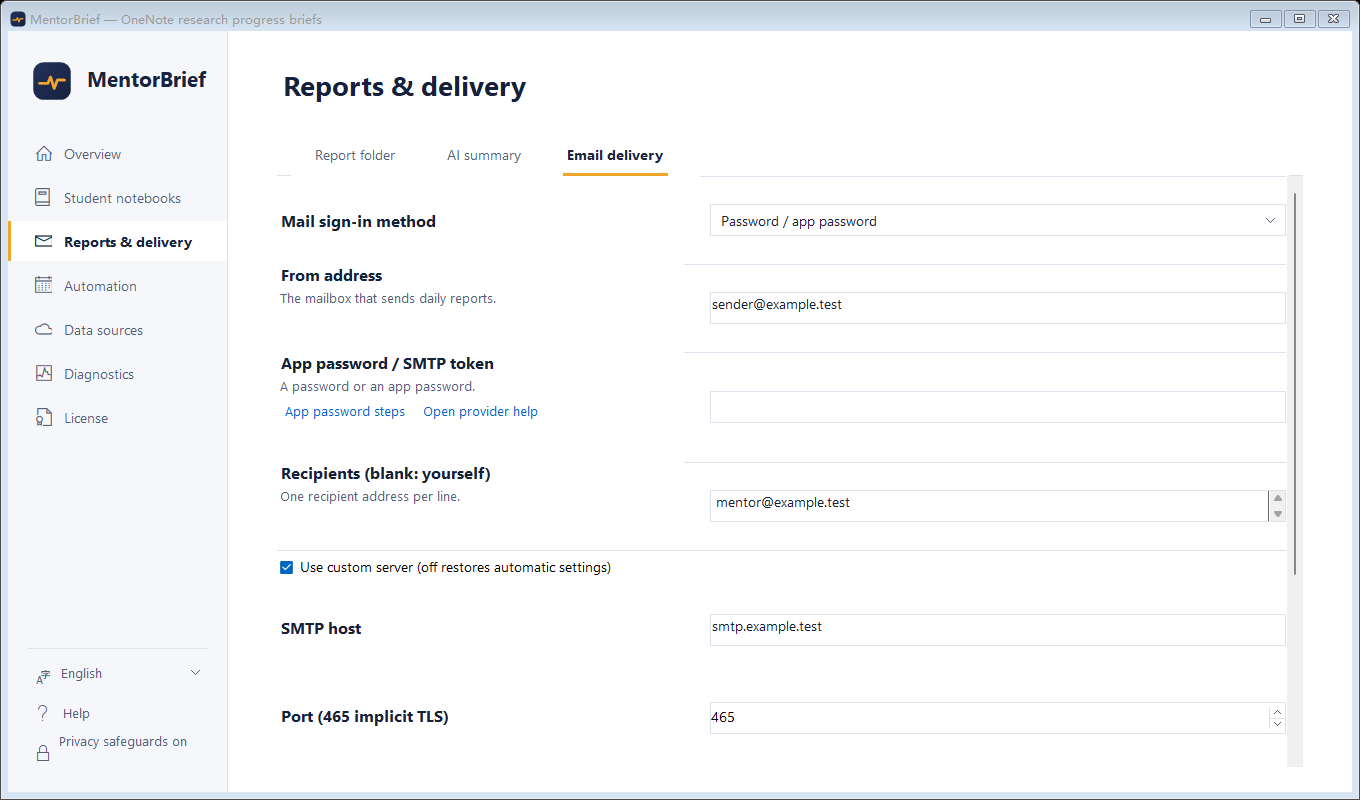
Set your sending mailbox, AI and report folder under Reports & delivery, then send a test and confirm receipt. AI usage fees are separate.
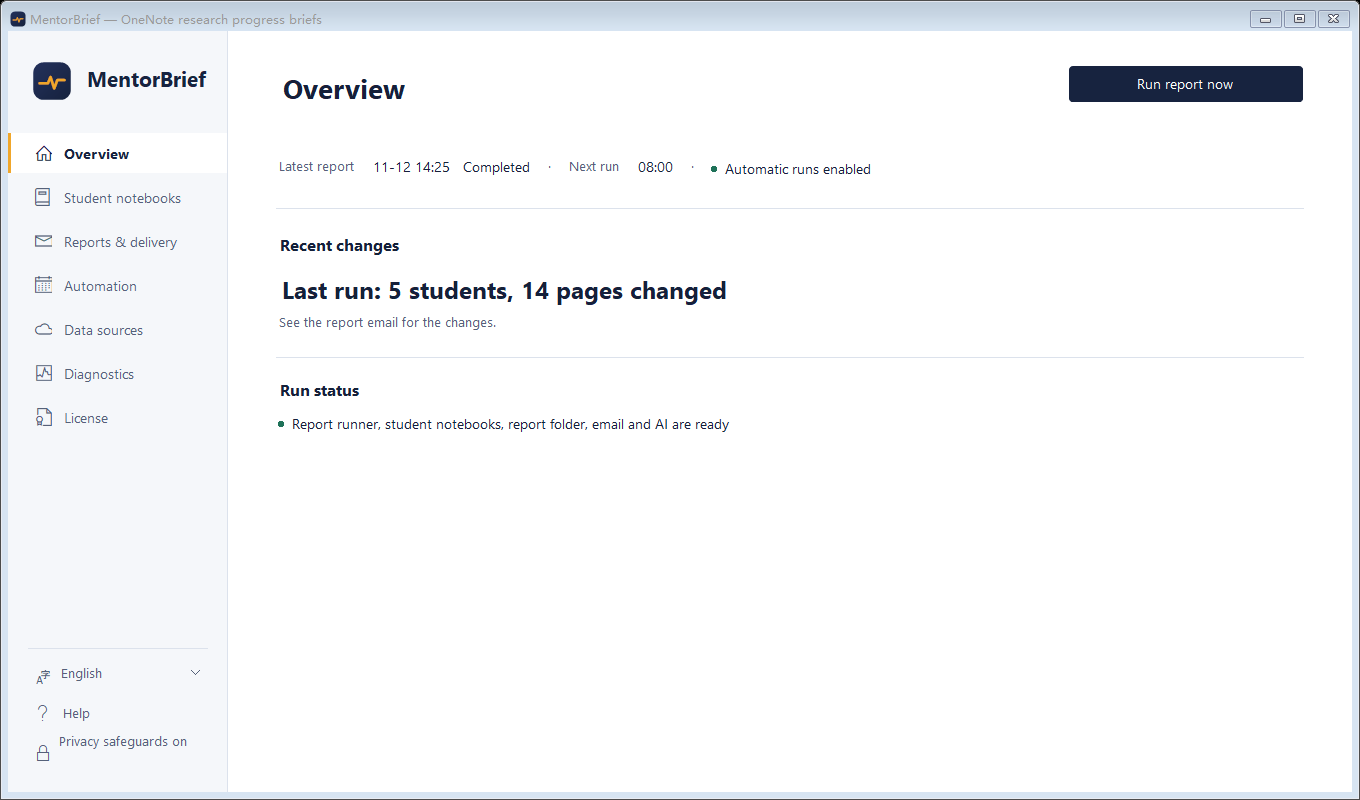
Complete First read in Overview, then select Run report now and check your inbox. First read establishes the baseline rather than reporting old notes as new progress.
Before you start · Windows scope
Everyday entry points
Routine configuration lives in the control center. The Ribbon opens, enrolls, runs, or explains.
Student notebooks
MentorBrief does not scan or display other OneNote notebooks. Every enrollment begins with the notebook you have open.
Open original image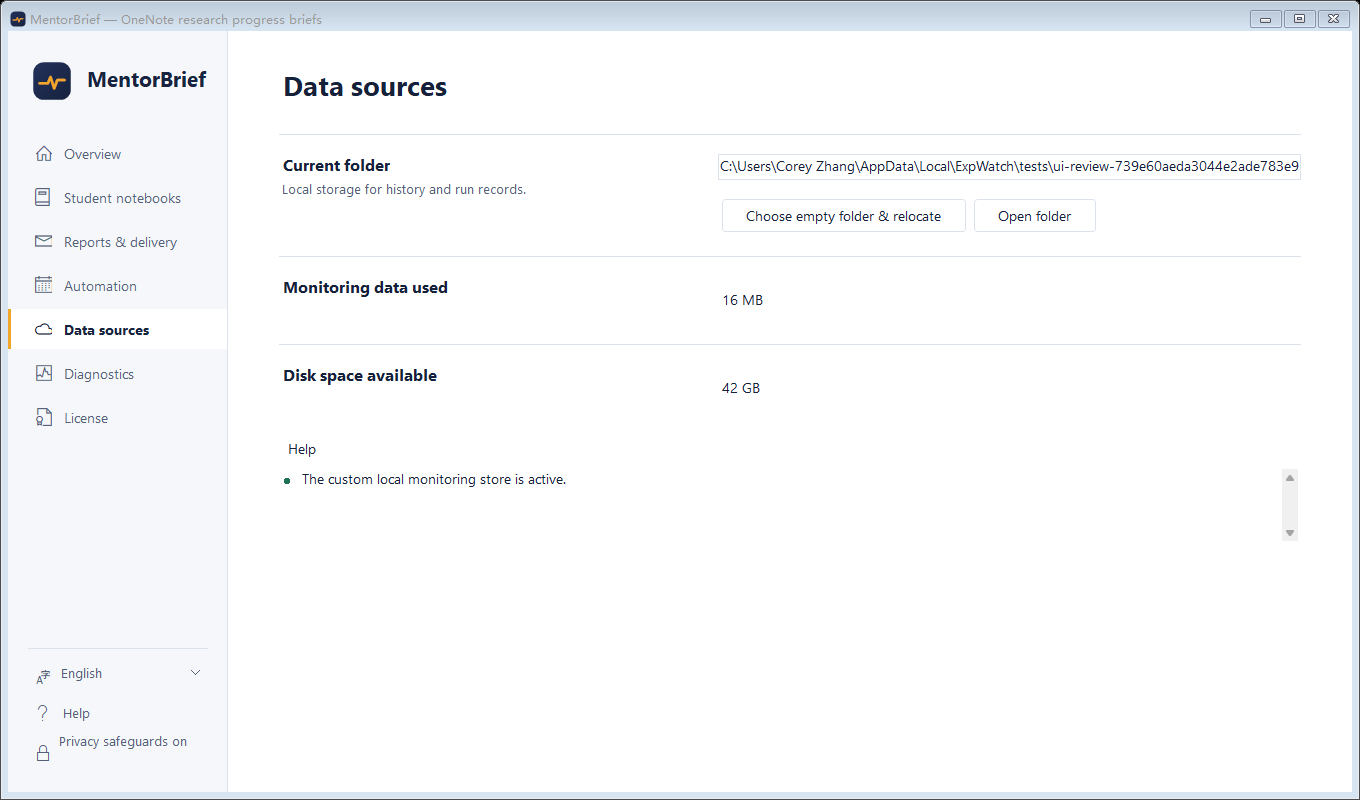 Open original image
The baseline tells MentorBrief where monitoring begins. It prevents a large existing notebook from appearing as new progress on installation day.
Reports and delivery
The control center reports actual stage outcomes. When no text change is found, MentorBrief can still send a no-change briefing. That states that no text change was recorded, not that every page was synced.
Use it for first-time verification or an ad-hoc review. Each deliberate manual action has a separate delivery identity and does not consume the scheduled daily opportunity. An unfinished run blocks a new one. To send manually again that day, review the previous result before deliberately clicking again.
Starts at the local time chosen under Automation. Only an explicit read, report, or delivery failure retries every 15 minutes, up to three times; success does not keep the task looping. Closing the control center does not cancel it.
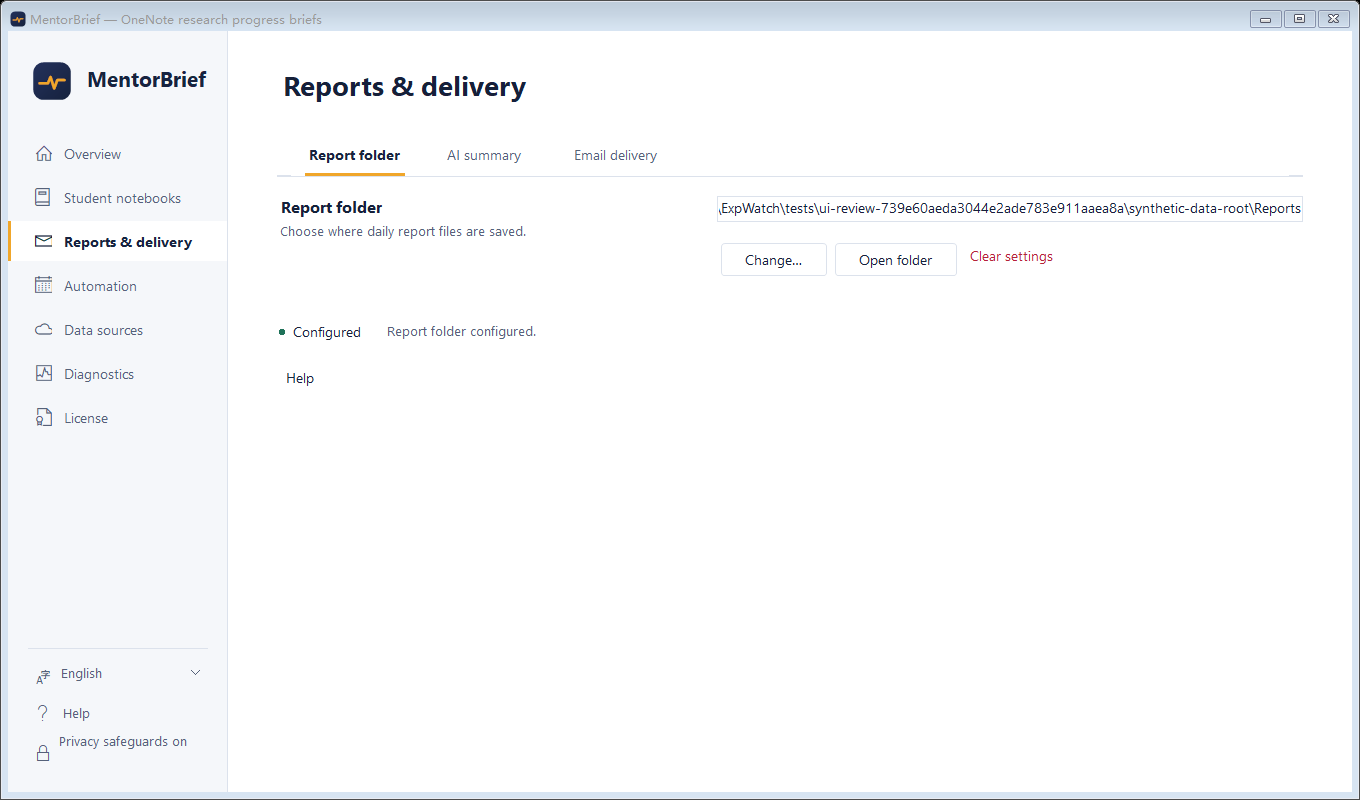 Open original image
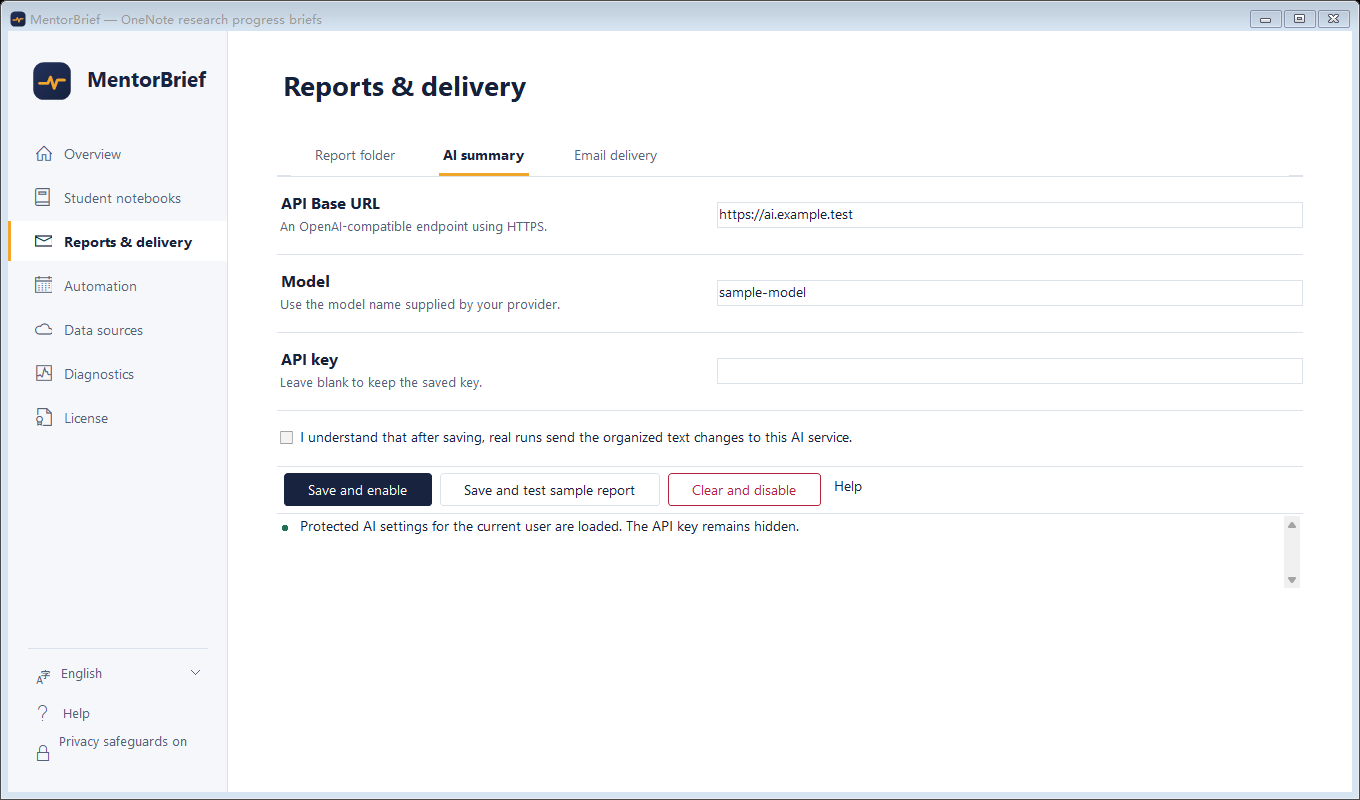 Open original image
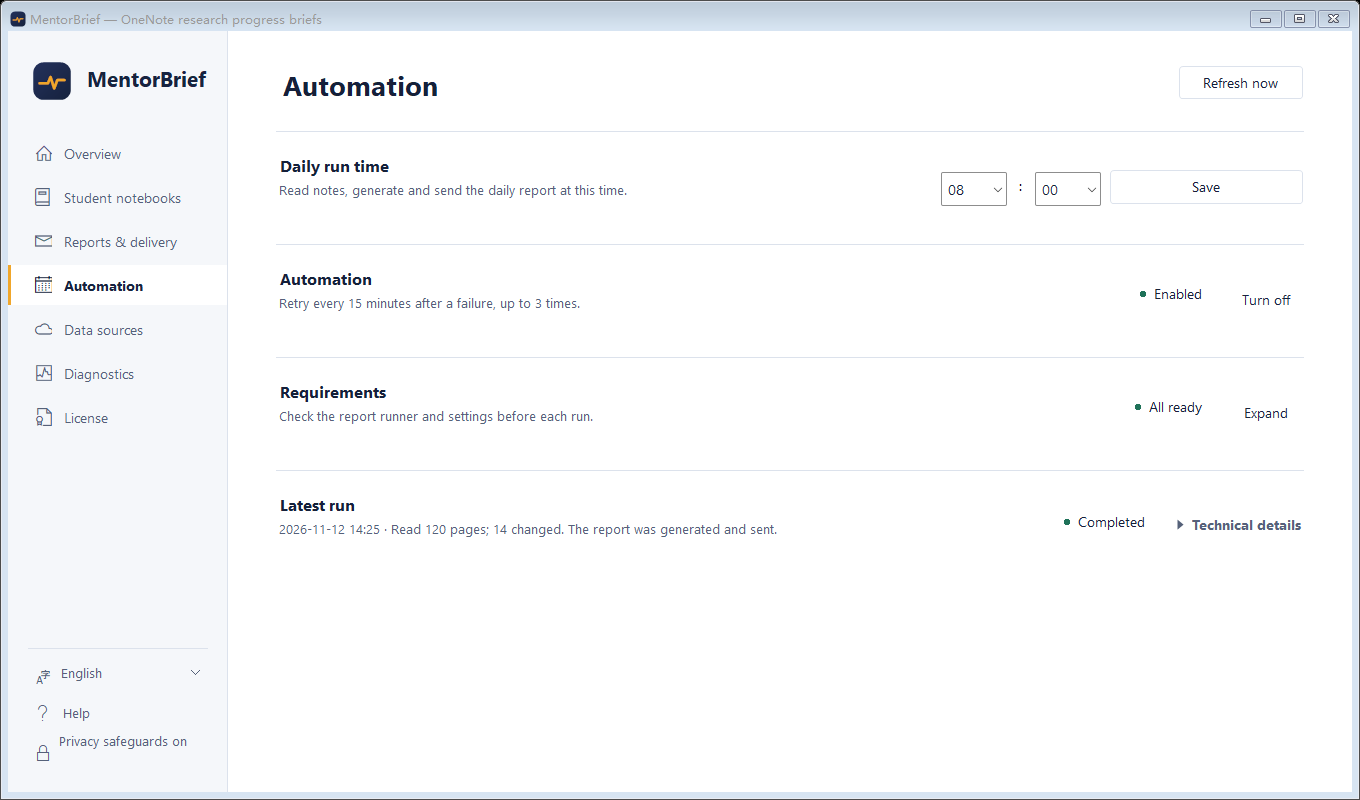 Open original image
Enter a compatible endpoint, model, and key, then run the synthetic test. If generation fails, check API funds, endpoint, model name, and network access.
The HTML email and Markdown report are rendered from one frozen result so local and emailed versions do not drift.
Choose password / client authorization code or Microsoft sign-in. The synthetic test uses fixed content and reads no OneNote pages.
Email setup · Confirm each step separately
Choose password / client authorization code, Outlook / Hotmail, or Microsoft 365 (work / school). Leave recipients blank to send to the sender. Microsoft browser sign-in saves the local connection but sends no email. One designated personal Hotmail account passed local sign-in, settings persistence, a synthetic SMTP send, and actual inbox receipt. Microsoft 365 work / school acceptance is waiting for an organization test mailbox. Read the full steps, policy requirements, and demo limits
Use Outlook / Hotmail for a personal Microsoft 365 subscription; use Microsoft 365 for an organization or school mailbox.
Use the same primary mailbox as the sender and complete Microsoft consent.
A successful connection is saved locally; this step sends no email.
Check the saved method and primary sender; reopening does not carry over receipt confirmation from the previous window.
“Server accepted” does not mean receipt; check your inbox and spam folder.
In OneNote, open the control center from the MentorBrief tab, then choose Reports & delivery → Email delivery. Reopening reads the saved connection and settings but does not carry over the previous window's receipt confirmation; check for the test message again in the current window.
For QQ Mail, open webmail, select the avatar in the top-right corner → Settings → Account & security → Security settings → Enable service → Generate authorization code. Enter that code in MentorBrief, not your mailbox sign-in password. See QQ Mail's official steps
For Gmail, 2-Step Verification must be on before an app password can be created. Some managed accounts, security-key-only setups, and Advanced Protection policies do not offer this option; Gmail OAuth is not supported. Read Google's official guidance
For a personal Microsoft 365 subscription, choose Outlook / Hotmail; for an organization or school primary mailbox, choose Microsoft 365. Enter that account's primary mailbox as sender and recipients (blank sends to yourself), select Sign in with Microsoft, and complete sign-in plus delegated SMTP.Send consent in the system browser using that same mailbox. A successful sign-in saves the local mail connection but sends no email. Only the signed-in primary mailbox is supported as sender; aliases, shared mailboxes, and sending as another mailbox are unsupported and are not inferred. This is the separate SMTP email-sending path. Microsoft Learn: OAuth for SMTP
You can enter one or more recipient addresses. Leave the field blank to send to the sender. The reserved example.test domain in this guide is only an example and cannot receive mail.
In password mode, when the sender domain is exactly qq.com or gmail.com, MentorBrief fills the matching host and 587 / STARTTLS; this preset does not verify an account. For other password-based providers, select “Use custom server (off restores automatic settings)” and enter the provider's host, port, and username. Microsoft sign-in uses fixed hosts: Outlook / Hotmail uses smtp-mail.outlook.com:587, and Microsoft 365 uses smtp.office365.com:587; both require STARTTLS and XOAUTH2, with no custom host or port.
Advanced settings apply only to password / client authorization-code mode: port 465 uses implicit TLS with TLS 1.2; other ports use STARTTLS. There is no automatic mode switch or downgrade, and implicit TLS on 994 is unsupported. On 465, sender and recipient addresses must be ASCII; SMTPUTF8 is unsupported, while Chinese display names, subjects, and bodies are supported. Use 465 only if your provider documents implicit TLS there. Gmail and other providers' OAuth sign-in is unsupported; use the Microsoft options above for Microsoft OAuth. Microsoft 365 also requires tenant and mailbox policy to permit SMTP AUTH, and may require administrator consent or approval under Conditional Access. If blocked, ask the administrator to review policy; do not disable Security Defaults or weaken Conditional Access. Microsoft sovereign clouds, including Office 365 operated by 21Vianet, are not supported. Microsoft Learn: SMTP AUTH settings · Official Outlook.com settings. On October 16, 2026, one designated personal Hotmail account passed sign-in, settings persistence, an SMTP test, and actual inbox receipt. This result covers that account and app registration. Microsoft 365 work / school acceptance is waiting for an organization test mailbox; other organization policies and network renewal after natural token expiry still require separate validation.
In password mode, enter the credential for the new account after changing the host, port, username, or sender. In Microsoft mode, sign in again after changing the account or method, and use the same primary mailbox in the browser and sender field.
Save settings only stores the configuration and does not send email. A successful Microsoft browser sign-in also saves the local mail connection, but still sends nothing. Save and send test email then starts the isolated sender with fixed synthetic content; it does not read OneNote or a daily report.
A “server accepted” test result means the test server accepted the message. It does not prove delivery. Check your inbox and spam folder, then select the receipt checkbox only after you personally find the message. That confirmation stays in the current window; close the window or change settings and you must test again.
Open original imageAfter a timeout, unconfirmed send, or partial recipient rejection, a message may already have been sent.Check every relevant inbox and spam folder first, then review recipients, credentials, and provider limits. Do not retry blindly. Clear SMTP settings removes only the local mail profile and authorization cache; it does not revoke Microsoft consent or sign out the browser. OneNote settings are managed separately. Read the disconnect note
Data sources
MentorBrief reads enrolled notebooks through the Windows OneNote desktop app. Keep OneNote signed in and allow sync to finish; if sync is incomplete or reading is partial, a report showing no change does not prove the notebooks were unchanged.
Local storage and privacy
Repairing or uninstalling the product should not silently erase monitoring history. A custom Monitoring Store must be on a local fixed disk.
Add-in, runners, embedded Python, and this offline guide. Repair, upgrade, and uninstall may replace these versioned files.
History, report state, student attribution, and sync ledgers. Uninstall preserves it by default, and successful relocation retains the old source.
The control center does not scan or list other OneNote notebooks. You explicitly enroll every additional notebook from the Ribbon.
Images, handwriting, attachments, and unsupported complex objects do not enter AI report text; the product preserves an honest scope disclosure.
Windows Installed apps removes the add-in and bundled runtime but preserves settings, credentials, and monitoring databases.
Common questions
Diagnostics provides safe details without student content. Copy those safe details when a persistent problem needs investigation.
The control center shows the current read, analysis, delivery or completed state. An unfinished run prevents another. Manual actions are separate from the daily scheduled report; a later deliberate manual click is not a replay merely because the date is unchanged. Review the last result in Overview and Reports & delivery before clicking again. If baseline setup is incomplete, finish deployment activation first.
Open enrolled notebooks in OneNote and wait for synchronization, then select Retry deployment activation. Unknown page counts are not displayed as a false 0%. If the problem remains, copy safe details from Diagnostics.
Check the API endpoint, key, model name, network, and API funds. MentorBrief never redisplays a saved key; leaving the field empty preserves the existing protected key.
In password mode, confirm the SMTP host, port, username, and current account credential (implicit TLS only on 465; STARTTLS on other ports). For Outlook / Hotmail and Microsoft 365, use the matching Microsoft sign-in. If Microsoft 365 rejects the connection, ask the administrator to check tenant and mailbox SMTP AUTH, consent, and Conditional Access requirements; do not disable Security Defaults or weaken policy. Gmail OAuth is unsupported; use an app password only if account policy allows it.
Yes. The control center is a settings and status window, and the enabled current-user Windows task runs independently. Closing OneNote does not remove the task. If OneNote was not running when a scheduled COM read begins, MentorBrief may start and preserve one OneNote process to avoid colliding with a later user launch; you can close OneNote normally when convenient.
Save work and close OneNote before running a newer installer. Setup verifies program files and restores the previous release after failure. Uninstall from Windows Installed apps; settings, credentials, and monitoring data remain by default.
This is the versioned offline guide included with your installation. Use the control center Diagnostics page for current product status and exact safe errors.